Meetings get a plane.
Paste your calendar’s iCal link from Google Calendar or Outlook, and every meeting gets a flyby a few minutes before it starts. SkyBanner checks it every 10 minutes.
 SkyBanner
Download
SkyBanner
Download
For Windows 10 and 11
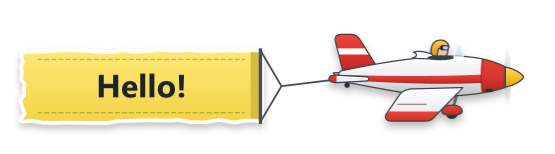
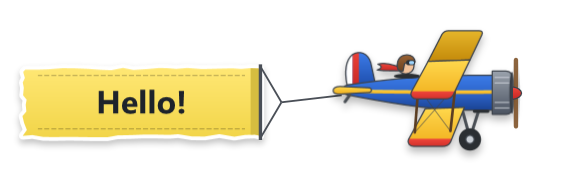
Type a message and pick a time. When it’s due, a little plane tows it across the top of your screen on a cloth banner, then flies off the other side. It floats above every window, never steals focus, and your clicks go straight through it.
Departures
SkyBanner runs your day like a timetable. Each reminder has a time and someone to bring it, and arrives the moment it’s due, on top of whatever you’re doing.
Departures
| Time | Reminder | Brought by | Status |
|---|
Statuses follow your own clock. Boarding: due within 15 minutes. Quiet hours: with quiet hours on, nothing flies; this one comes as a quiet notification instead.
On board
Paste your calendar’s iCal link from Google Calendar or Outlook, and every meeting gets a flyby a few minutes before it starts. SkyBanner checks it every 10 minutes.
Repeat a reminder every day, on weekdays, every week or every few minutes, on the days and between the hours you choose. With Pro, give it other ways to say it, and each flight takes the next.
Ready-made reminders for water, movement, gentle stretching, mindful breathing, eye breaks, meals and a bedtime wind-down. Add one in a click (or, with Pro, a whole routine like Healthy desk day), then change anything. Friendly suggestions, not medical advice.
Set quiet hours, or pause flybys from the tray for an hour or until tomorrow. Break reminders wait while you’re away from the PC and start a fresh countdown when you’re back. Reduce motion has characters appear in place instead of crossing the screen.
No window to keep open. From the tray icon: a quick reminder, a test flyby, the last banner again, Snooze for the reminder that just came, or a pause for a while.
Safety briefing
A reminder should catch your eye, not your mouse. Try these: each little screen runs the real thing.
The plane and banner float above your windows, but clicks pass through them to whatever is underneath.
Nothing saved yet. Click Save while the plane is over it.
Teams, Zoom, OBS and the Snipping Tool don’t see the plane, so a reminder stays between you and your screen. It’s on from the start; turn it off to record one.
What you see: the plane flies by as usual.
During presentations and full-screen apps, a reminder comes as a quiet Windows notification instead of a plane.
Not presenting: the plane flies by as usual.
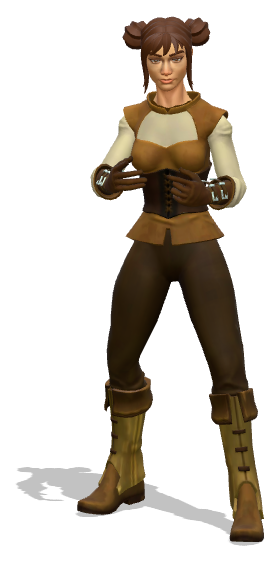
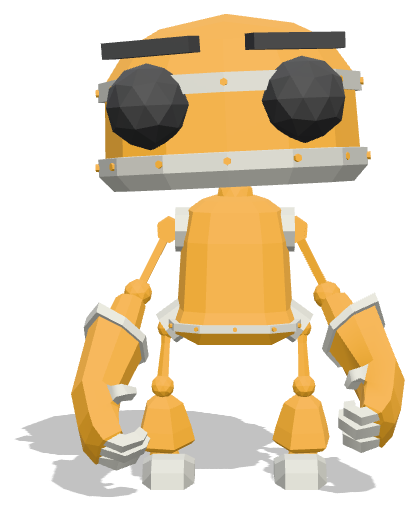
Meet the crew
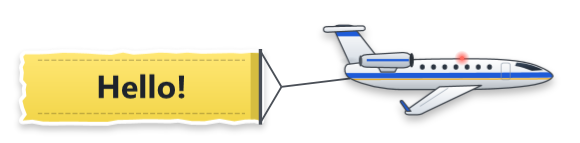
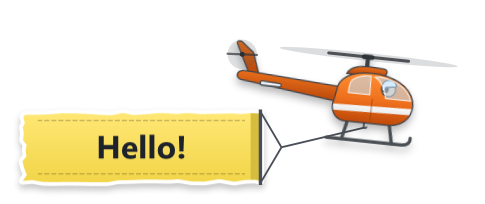
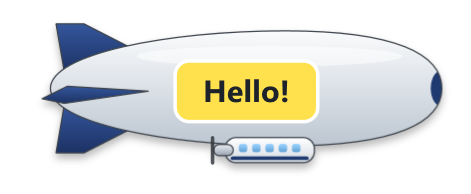
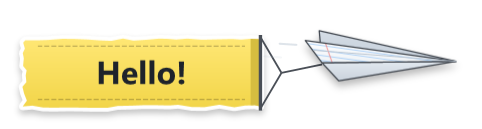
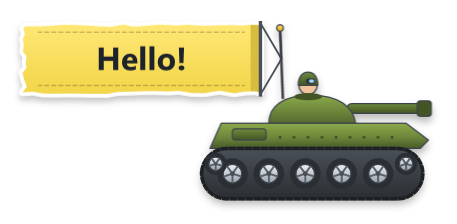
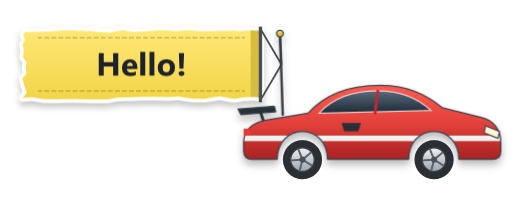
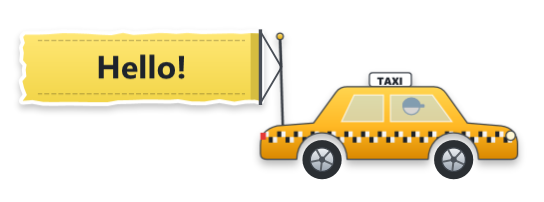
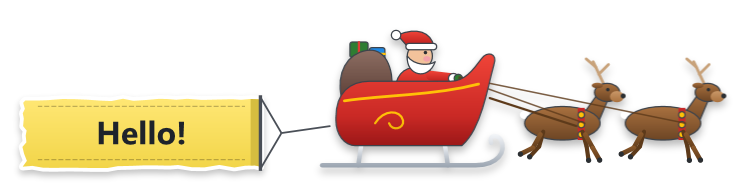
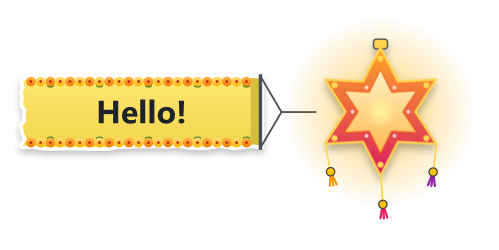
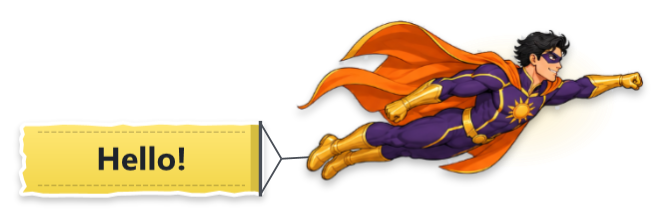
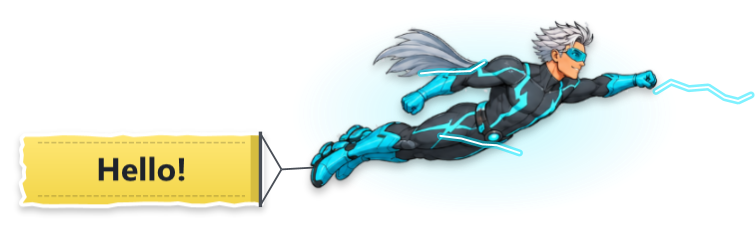
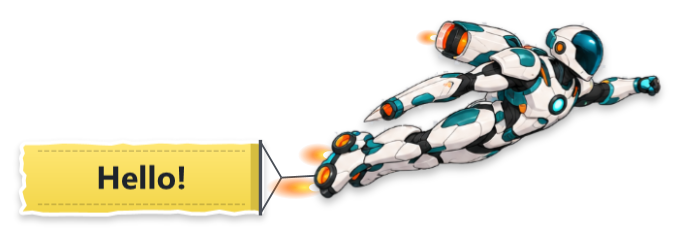
Pick one for each reminder, or tick a lineup and SkyBanner mixes them up. Each moves the way the real thing does, with its own sound.
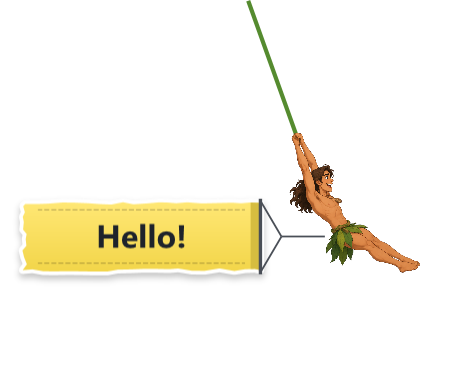
The pets, the people and Bolt the robot are real 3D models, animated live by your graphics card: Mochi and Koda trot in, sit down and bark, Misty meows, and Leo, Mia and Bolt read your message out loud.
The six aircraft and Mochi come free, and you can try any of the others; the rest come with SkyBanner Pro.
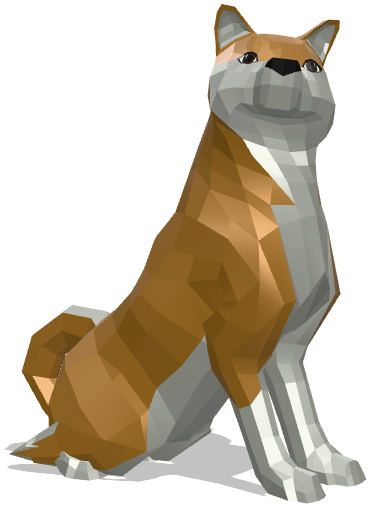
Drag to turn them around.
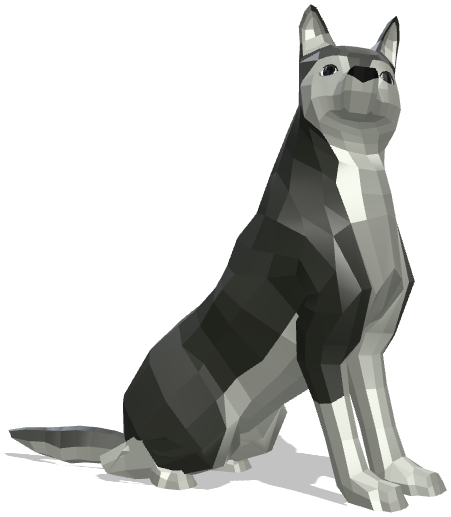
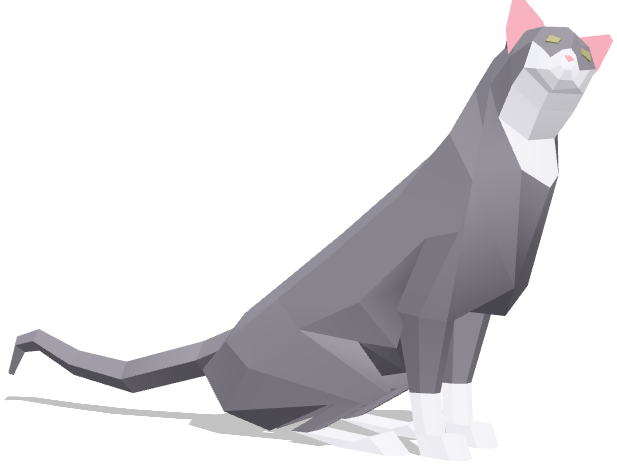
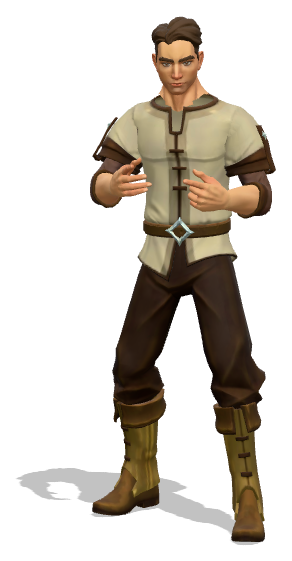






Customs
SkyBanner has no accounts, no ads and no analytics. Your reminders, settings and calendar links stay on your PC, and its developer never receives them.
Customs declarationSB-01
Is SkyBanner carrying any of the following?
SignedSkyBanner
Nothing to declareGate 1
SkyBanner for Windows 10 and 11. No admin rights needed, and no .NET to install.
SkyBanner
Boarding pass
FromHereThis page
ToTrayYour PC
“Windows protected your PC”? SkyBanner is new and its installer isn’t code-signed yet, so SmartScreen may stop it the first time. Choose More info, then Run anyway.
Information desk
Windows 10 and Windows 11. It installs just for you, so it needs no admin rights, and it brings everything it needs with it: there’s no .NET to install.
No. Flybys float above your windows but never take the focus, so what you’re typing stays where it is, and clicks pass straight through the plane and banner to whatever is underneath.
Not unless you want them to. “Hide flybys from screen sharing and recordings” is on from the start, so Teams, Zoom, OBS and the Snipping Tool don’t see the plane. Turn it off in Settings to record one.
During presentations and full-screen apps, a reminder comes as a quiet Windows notification instead of a plane.
Yes. Paste your calendar’s iCal link on the Calendars tab. In Google Calendar it’s under Settings → your calendar → Secret address in iCal format; in Outlook, Settings → Calendar → Shared calendars → Publish a calendar → ICS link. SkyBanner checks it every 10 minutes and sends a plane a few minutes before each meeting.
A one-time reminder waits and flies when you’re back. Break reminders skip their turn while you’re away (screen locked, or no mouse or keyboard for 10 minutes) and start a fresh countdown when you return.
Yes. Turn the sounds down or off, set quiet hours, pause flybys from the tray, or switch on Reduce motion, so pets, people, robots and cars appear in place instead of crossing the screen. Reduce motion also comes on by itself when Windows’ animation effects are off.
Once a day SkyBanner looks on GitHub for a new version and offers it in a small window above the tray. Choose Update now and it downloads it, checks that it’s genuine (signed, exact size and SHA-256) and restarts into it, keeping your reminders and settings. If the new version doesn’t start, the old one is put back.
On your PC, in %AppData%\SkyBanner; About → Open data folder takes you there. Nothing is sent to the developer.
Windows Settings → Apps → Installed apps → SkyBanner → Uninstall. It removes SkyBanner and its downloaded updates, and asks whether to delete your reminders and settings too.
Open an issue on GitHub with what happened and your version of Windows. For your SkyBanner Pro license or a payment, write to bharaskar.akash444@gmail.com instead, so your key stays private.